Tutorial 03
Connect
After nodes are in the list, you still have to select one and turn the switch on. A VPN badge only means the system tunnel is up. It does not mean this node works. Confirm with the test on Home.
1. Select a node, then flip the switch
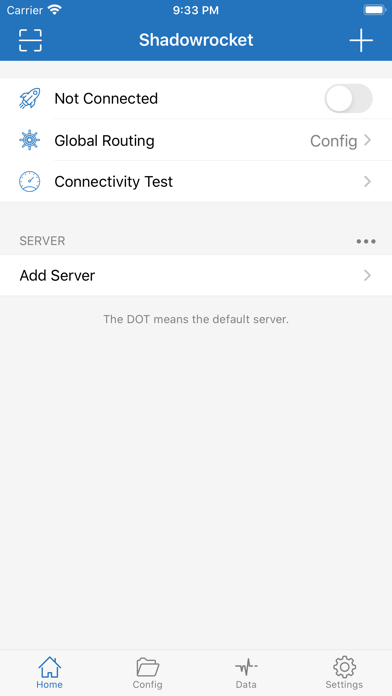
- Tap a node in the SERVER list so it is selected. Official notes use a dot for the default server.
- Turn on the switch to the right of Not Connected. The label then becomes Connected.
- If the system asks for VPN permission again, allow it.
- Check the status bar or Control Center for a VPN badge. A badge means Shadowrocket has taken over routing.
- If you flip the switch with no node selected, the tunnel may come up with no exit, and the browser will not load.
2. Confirm with Connectivity Test
Tap Connectivity Test on Home. The app measures latency for nodes in the list using the configured method (often TCP by default; change it in Settings → Test Method).
- Nodes that return a number at least have an open port. Prefer those.
- Do not keep retrying a node that times out or fails. Move to the next one.
- If every node fails, pull down to update the subscription, then check that the device clock is accurate. Do not uninstall the app first.
3. Optional: connect on demand
If you do not want to flip the switch every time, open Settings → On Demand. This is an advanced item. Daily use does not require it.
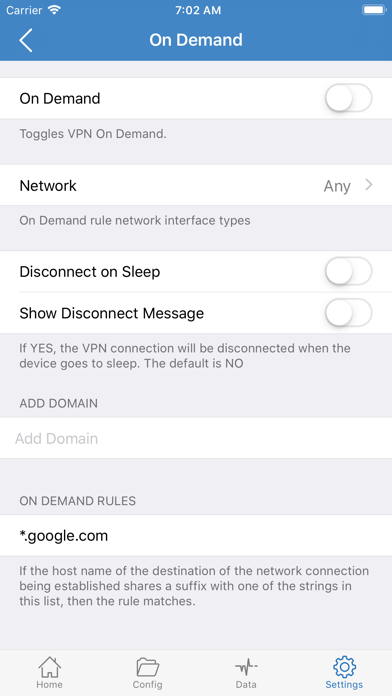
- On Demand: master switch. When it is off, the rules below do nothing.
- Network: which networks the rule applies to. The screenshot shows Any.
- Disconnect on Sleep: whether to disconnect when the device sleeps. Usually off by default.
- Add Domain: match a domain suffix. The example
*.google.comhits when you visit that kind of hostname.
A wrong rule can skip a connect you need, or connect when you do not. Until you know it, leave it off and keep using the switch on Home.
4. Connected, but pages still fail
Change items in this order, one at a time:
- Check whether Global Routing is Direct. If it is, switch back to Config. See the next tutorial.
- Switch to a node that returns a Connectivity Test result.
- Go back to Home and pull down to update the subscription.
- In system Settings, confirm Shadowrocket’s VPN configuration is still there and connected.
If it still fails, send your provider four sentences: current mode, how many nodes you tested, whether you just updated the subscription, and whether the system still shows VPN. That is more useful than “it will not connect.”
If tests keep failing, go back to the previous tutorial and confirm Type and the URL are complete, then check in the next tutorial whether Global Routing is stuck on Direct.