Tutorial 05
Troubleshoot
Pin one symptom, then change only one item. If you change the mode, node, and subscription together, you cannot tell which step worked. The notes below follow the official Settings pages.
1. Work from the symptom
Match the closest row first. Do not treat several kinds of problems at once.
| Symptom | Check first |
|---|---|
| Switch is on, pages will not load | Is the mode Direct → change node → pull down to update the subscription → is the device clock accurate |
| No VPN badge in the status bar | Whether the configuration is still in Settings → General → VPN & Device Management; delete and grant permission again if needed |
| Subscription failed or config invalid | Whether the URL was truncated or expired; get a new one from your provider |
| Only some sites fail | Compare Config and Proxy to see whether rules classified the request wrongly |
| Battery use is much higher than usual | Whether Proxy has been left on; whether On Demand rules are too broad |
2. Use Diagnostics for logs and routes
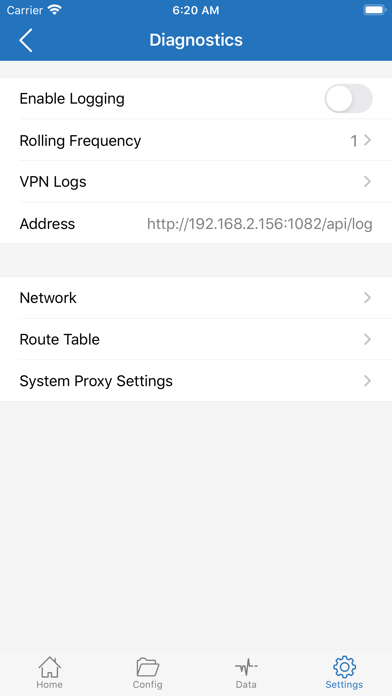
- Open Settings at the bottom, then Diagnostics.
- Turn on Enable Logging, reproduce one failure, then open VPN Logs.
- Route Table shows whether the current routes match what you expect.
- System Proxy Settings is for checking whether system-side proxy settings were changed.
- Address is a local log interface for your own troubleshooting. Do not post it in public.
- Turn Enable Logging off when you are done, so logs do not keep writing.
3. Data: import, export, and backup
If nodes “all vanished,” look here first. Do not rush to reinstall.
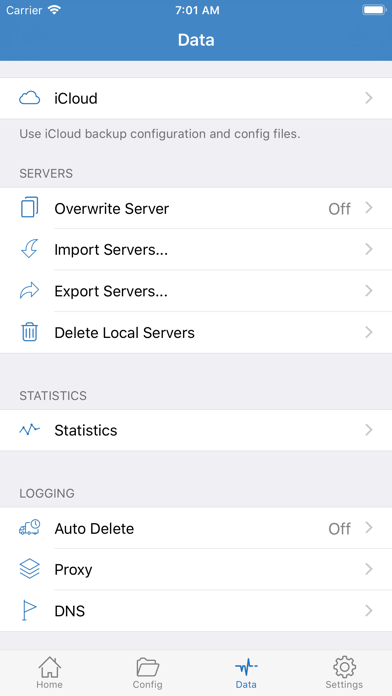
- iCloud: put config and rule files in iCloud. Confirm it is on before you change devices.
- Import Servers / Export Servers: export a copy before you change the subscription, so a failed update does not empty the list with no way back.
- Delete Local Servers: this clears local nodes. Confirm before you use it.
- Statistics shows traffic. Proxy / DNS logs help you see whether a request left the device.
4. Settings items that matter for troubleshooting
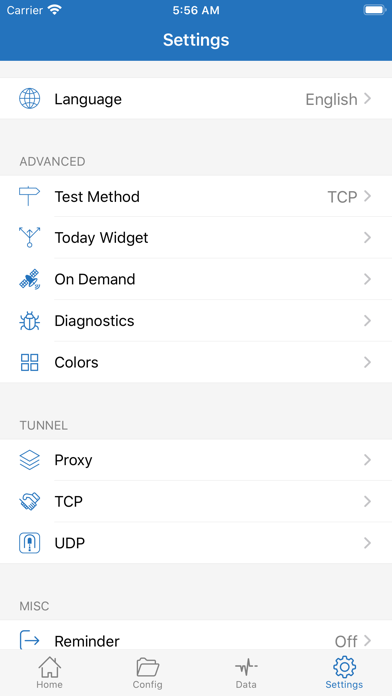
- Language: changes UI copy only. It does not change nodes or rules.
- Test Method: the method Connectivity Test uses. The screenshot shows TCP.
- On Demand: auto-connect rules. See the Connect tutorial. If it disconnects on its own, turn this off first.
- Proxy / TCP / UDP under Tunnel: advanced tunnel parameters. Do not change them unless your provider asked.
5. When a reinstall is actually worth it
Reinstalling will not fix an expired subscription or a dead node. Consider deleting the app and downloading it again from the App Store only if permission is lost, adding a VPN configuration keeps failing, or the app will not launch. Export servers in Data first.